
How To Scan And Rewrite Text On iPhone From Photos, Screenshots, Or Notes
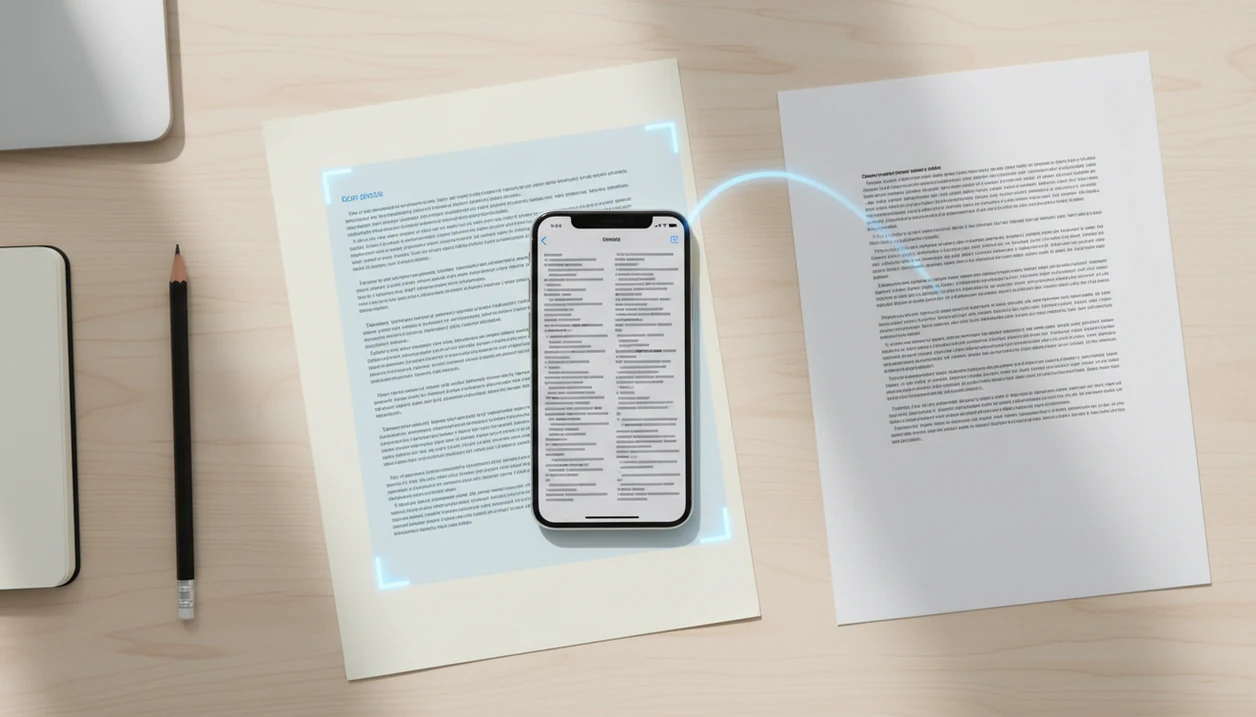
To learn how to scan rewrite text on iPhone, first extract the words from a photo, screenshot, note, or webpage with iPhone text selection or OCR, then paste the editable text into Apple Intelligence Writing Tools or a web rewriter such as Write.info. The key is separating the workflow into two jobs: capture the text accurately, then rewrite, proofread, humanize, or check it before you use it.
Definition: iPhone OCR rewrite is the process of converting text in an image into editable text on iPhone, then using a rewriting tool to change its wording, tone, length, or clarity.
TL;DR
- Text inside a photo must usually be extracted before it can be rewritten.
- Apple Intelligence Writing Tools can rewrite, proofread, and summarize typed or pasted text on compatible iPhones.
- If your iPhone does not support Apple Intelligence, copy the scanned text into Write.info or another browser-based rewriting tool.
iPhone OCR Rewrite Workflow At A Glance
The iPhone OCR rewrite workflow is capture, clean, rewrite, verify, and use. In plain terms, you turn image text into editable text, fix recognition errors, rewrite it, then check the final version before sending or submitting it.
Apple Intelligence rewrites editable text, not image pixels. If the words are still trapped inside a photo or screenshot, the rewrite step has nothing reliable to work with. That is why iPhone OCR rewrite starts with text selection, Live Text-style copying, or another scan step.
A practical scan text iPhone AI workflow looks like this: copy the recognized text, paste it into Notes, Mail, Safari, or a writing app, then choose a rewrite option. A browser-based rewriter can be a fallback for rewriting, humanizing, and detector checks when Apple Intelligence is unavailable or when the final text needs a second pass.
Tiny OCR mistakes travel fast.
For rewrite photo text iPhone tasks, cleaning the scan often matters more than the rewrite button.
Five Facts About Scan Text iPhone AI Rewriting
- Apple Intelligence Writing Tools are available starting in iOS 18.1 on compatible devices, according to Apple’s Apple Intelligence overview source.
- iPhone support requires eligible hardware, including iPhone 15 Pro and later models for iPhone availability, per Apple’s device requirements source.
- Writing Tools can proofread, rewrite, and summarize text after the words are typed, pasted, or otherwise editable, according to Apple’s Writing Tools guide source.
- Apple says Writing Tools work nearly everywhere users can type, including many third-party apps, so the rewrite path is not limited to Notes source.
- OCR from photos and screenshots can lose formatting or misread unclear text, especially with angled pages, handwriting, stylized fonts, or low contrast.
The practical takeaway is simple: scan first, rewrite second, review last. A student in a library cubicle with earbuds in should not trust a detector score or rewrite until the copied quotation, page number, and sentence order have been checked.
Requirements Before You Rewrite Photo Text On iPhone
Before you rewrite photo text on iPhone, check three things: device support, text quality, and where the editable text will go. Apple Intelligence needs a supported iPhone and iOS 18.1 or later, while browser-based tools only need copied text and a usable web session.
The source image matters. Retake the photo if the page is tilted, cropped, glossy, dim, or blurred. OCR can turn “modernism” into “modemism” and then the rewrite may make the wrong word sound polished. That is worse than an obvious typo.
You also need an editable destination such as Notes, Mail, Messages, Safari, or another editable app. If you move between devices often, our AI writing app for iPhone guide covers phone-first drafting workflows in more detail.
Pause before uploading sensitive material. Schoolwork, contracts, IDs, medical text, private emails, and client documents may carry privacy duties. A good writing workflow helps with wording, not permission.
How iPhone OCR Rewrite Works Behind The Scenes
iPhone OCR rewrite works by recognizing characters and words from image data, converting them into editable text, and sending that text to a rewriting tool. OCR means optical character recognition; the simple version is that the phone guesses which letters are visible in the image.
Once the words are editable, the rewrite tool can change tone, length, structure, and phrasing. It does not automatically know whether a claim is true. If the scanned text says the wrong date, the rewrite may preserve that date in cleaner language.
The weak spots are predictable. Tables, columns, line breaks, handwriting, and decorative fonts can break the reading order. A flyer with three columns may paste as one strange paragraph. A PDF rubric open beside revision notes may copy the criteria but drop the indentation that explains which points belong together.
AI writing assistant platforms with an AI detector, humanizer, rewriter, chat agents, web access, and a companion iOS app can support the revision workflow, not replace source checking, attribution, or judgment.
How To Use iPhone OCR Rewrite In 6 Steps
Use iPhone OCR rewrite by extracting the text first, then rewriting only after the words are editable. The scan-to-rewrite process usually takes less time than retyping, but only if you clean the OCR before the AI edit.
- Open the source image or text. Use a photo, screenshot, webpage, note, PDF, or document that contains readable text.
- Select and copy the recognized text. Tap and hold the text if iPhone recognizes it, then copy only the section you need.
- Paste the text into an editable field. Notes, Mail, Messages, Safari, and many writing tools can hold the copied text.
- Fix OCR mistakes before rewriting. Correct names, numbers, punctuation, and broken line breaks first.
- Rewrite with Apple Intelligence or Write.info. Choose a tone such as concise, professional, friendly, clearer, or more natural.
- Review the rewritten version. Compare the meaning, voice, links, citations, and formatting before you use it.
If a step feels unreliable, go back one stage: retake the image, recopy a smaller text section, or compare the rewrite against the original before sharing it.
Step 1: Scan Text On iPhone From Photos Or Screenshots
Can you scan text on iPhone from photos or screenshots? Yes, when iPhone recognizes the words, you can usually tap and hold the selectable text, then copy it into an editable app before rewriting.
Photos and screenshots are the usual starting points. Open the image, zoom if needed, then press on the text area until selection handles appear. Select only the relevant paragraph, caption, email, or numbered section. Copying the entire image often brings in headers, footers, and repeated navigation text.
If selection feels unreliable, retake the image before blaming the rewrite tool. Blurry, angled, cropped, and low-contrast photos create bad OCR. We have seen a social caption trimmed for a phone screen copy cleanly, while a tilted classroom handout turned bullets into one long sentence.
For iPhone OCR rewrite, the most reliable method is to capture a clean image and copy a small text section before using any rewrite tool.
Step 2: Rewrite Scanned iPhone Text With Apple Intelligence
To rewrite scanned iPhone text with Apple Intelligence, paste the copied text into an editable app, select it, and choose Rewrite or the Apple Intelligence Writing Tools option. The words must be selectable text, not only visible inside the original image.
On compatible iPhones running iOS 18.1 or later, Apple says Writing Tools can proofread, rewrite, and summarize text. The same system is designed to work in many places where users can type, including many third-party apps. That means a copied paragraph can often be rewritten inside Notes, Mail, Messages, or another text field.
Rewrite modes may include options such as clearer, concise, friendly, or professional, depending on the app and system version. A client email can become more direct. A note can become shorter. An airport gate email rewrite on screen is a normal use case, especially when you only have two minutes before boarding.
Apple Intelligence usually works best when the text is already clean, while a separate OCR cleanup step fits messy photos and screenshots.
Step 3: Rewrite Photo Text iPhone Content With Write.info
If your iPhone does not support Apple Intelligence, or if you want detector and humanizer checks, paste the extracted OCR text into Write.info in Safari or the iOS companion app if available. Write.info is an AI detector that checks AI-generated text and provides humanizer, rewriter, and chat tools for students, writers, and professionals.
Start by copying the scanned text from Photos, a screenshot, Notes, or a webpage. Then paste it into the rewriter or humanizer and choose a goal: clearer, shorter, more natural, more professional, or less robotic. This is especially useful when the OCR text came from a formal notice or rough AI draft that still sounds like “in today’s fast-paced world.”
When authenticity matters, run an AI detector check after the rewrite. A detector score is not a verdict, but it can point to sentences that need a more human-sounding edit. If you also draft on a tablet, the related AI writing app for iPad workflow explains larger-screen revision steps.
Step 4: Check OCR Errors Before The iPhone AI Rewrite
Check OCR errors before the iPhone AI rewrite because the rewriting tool may preserve or amplify wrong scanned words. A polished rewrite of a misread name, price, deadline, or citation is still wrong.
Review names, numbers, dates, citations, punctuation, and line breaks. Look closely at characters that OCR often confuses, such as 0 and O, 1 and l, or rn and m. If a source title pasted in the wrong case or a DOI link looks dead, fix it before rewriting.
Remove accidental headers, footers, watermarks, page numbers, duplicated captions, and repeated navigation text. Then restore bullets, paragraph breaks, and sentence order when OCR collapses the layout. Copy-pasting a paragraph into a web editor and watching highlighted sentences appear is useful only after the scan itself is readable.
For scanned academic or work text, cleanup before rewriting is often safer than rewriting first because factual errors become harder to notice after the prose sounds smooth.
Step 5: Verify Rewritten iPhone Text Before Sharing
Verify rewritten iPhone text by comparing it against the original meaning, the destination, and any required formatting. Rewriting can improve clarity, but it can also shift emphasis, soften a warning, or make a claim sound stronger than the source supports.
Read the original and rewritten versions side by side. Check whether the tone fits the destination: school submission, work update, email, social post, client message, or personal note. A professional rewrite for a manager should not sound like a sales caption.
Use an AI detector or humanizer check when authenticity matters, especially for text that started as AI-assisted drafting. A student rereading a detector result at 11:47 p.m. before a learning-management-system upload window closes needs a practical next step, not panic. Revise the draft, check the source, and keep the meaning intact.
Reinsert formatting manually. Links, citations, bullets, tables, and paragraph breaks may not survive OCR or rewriting. Also, rewriting is not a substitute for permission, attribution, or fact-checking.
Common iPhone OCR Rewrite Mistakes
The most common iPhone OCR rewrite mistake is trying to rewrite a photo before the text has been extracted. If the words are still image pixels, the rewrite tool cannot reliably edit the sentence itself.
Another mistake is assuming every iPhone supports Apple Intelligence Writing Tools. Compatibility depends on both hardware and software, so older devices may need a browser-based rewriter instead. Android users face a different setup, which we cover in our AI writing app for Android workflow.
Skipping OCR cleanup causes many bad rewrites. The output may sound fluent while carrying the wrong name, number, quote, or date. Tables, columns, and handwriting also cause trouble because copied text may arrive out of order.
The last mistake is treating a rewrite as proof. It does not confirm facts, ownership rights, permission to reuse text, or whether a source has been cited correctly. Cleaner wording is not automatic accuracy.
Limitations
iPhone OCR rewrite is useful, but it has real limits. Treat the workflow as a drafting aid, not as a final authority.
- Apple Intelligence is not available on every iPhone, and the built-in Rewrite option depends on supported hardware and iOS.
- Text in images usually must be extracted before rewriting; most rewrite tools work on editable text, not image pixels.
- OCR struggles with handwriting, low-resolution images, angled photos, stylized fonts, shadows, glare, and poor lighting.
- Formatting can be lost when copying tables, bullets, columns, footnotes, page numbers, and line breaks.
- AI rewrites do not fact-check claims automatically, so wrong dates, statistics, names, and citations can remain wrong.
- A rewrite may change nuance, tone, emphasis, or obligation language in ways the user must review.
- Sensitive or private text should be handled carefully before uploading to any web tool, including contracts, IDs, school records, health details, and client material.
- Detector checks can be helpful, but a detector score should not be treated as a guaranteed judgment about authorship.
Short version: keep the human in the loop.
FAQ
Can an iPhone rewrite text from a photo?
Yes, but the text usually must be extracted from the photo first. After it becomes editable text, you can paste or select it and use a rewrite tool.
Which iPhone models support Rewrite in Apple Intelligence?
Apple Intelligence Rewrite requires a supported iPhone and iOS 18.1 or later. Apple lists iPhone 15 Pro and later models as supported for iPhone availability.
Does Apple Intelligence Rewrite work in Notes?
Yes, on compatible devices, typed or pasted text in Notes can be selected and rewritten with Apple Intelligence Writing Tools. Availability may depend on region, language, and system settings.
Can I rewrite text from a screenshot on iPhone?
Yes, if your iPhone recognizes the screenshot text, copy it first and paste it into an editable field. Then use Apple Intelligence or another rewriter.
Why does scanned iPhone text come out wrong?
Scanned text comes out wrong when OCR misreads blurry images, poor lighting, handwriting, stylized fonts, or complex layouts. Retaking the image and cleaning the copied text helps.
Does rewriting scanned text preserve formatting?
Not always. OCR and rewrite tools may lose bullets, line breaks, tables, columns, spacing, and citation layout.
Can a browser-based rewriter edit text copied from an iPhone scan?
Yes. Copied OCR text can be pasted into a browser-based rewriter; use Write.info if you also want humanizer and detector checks. Review the output against the original before using it.
Is iPhone Rewrite a fact checker?
No. iPhone Rewrite improves wording, tone, or length, but it does not automatically verify facts, citations, ownership, or permission.