Image to Text Converter
Extract text from images, screenshots, and photos instantly. Free OCR tool with support for multiple languages and formats.
What Is Image to Text Conversion
Image to text conversion is the process of extracting readable text from image files using optical character recognition (OCR). The technology analyzes pixel patterns in an image, identifies characters, and outputs them as editable text. It works with photographs, screenshots, scanned documents, and any image that contains visible text.
I rely on image-to-text tools more than I expected to when I first started using them. The most common situation is extracting text from screenshots. Someone sends a screenshot of an error message, a snippet from a document, or a quote from a book, and I need the actual text to search for it, paste it somewhere, or respond to it. Retyping text from an image is tedious and error-prone, especially with longer passages. An OCR tool does the same job in seconds and rarely makes mistakes with clean digital text. The technology has been around for decades-it powered early document scanning systems in the 1990s-but modern implementations using machine learning are dramatically more accurate than the rule-based systems that preceded them.
Where things get interesting is with imperfect source material. A crisp screenshot from a website will convert almost flawlessly. A photo of a whiteboard taken at an angle in mixed lighting will give you maybe 80% of the text, with errors scattered throughout. A crumpled receipt photographed with a phone camera might get you the major line items but scramble the small print. The gap between these scenarios illustrates the core challenge of OCR: it is not just about recognizing letters, it is about dealing with noise, distortion, variable fonts, and backgrounds that interfere with character boundaries.
Modern OCR engines handle these challenges by combining traditional pattern matching with neural networks trained on millions of text samples across different fonts, sizes, languages, and conditions. The neural network approach is what allows current tools to read text that older systems would have rejected entirely. Curved text on product packaging, text overlaid on photographs, handwriting that is more scribble than script-contemporary OCR can attempt all of these, even if accuracy varies widely depending on input quality.
How to Use the Image to Text Tool
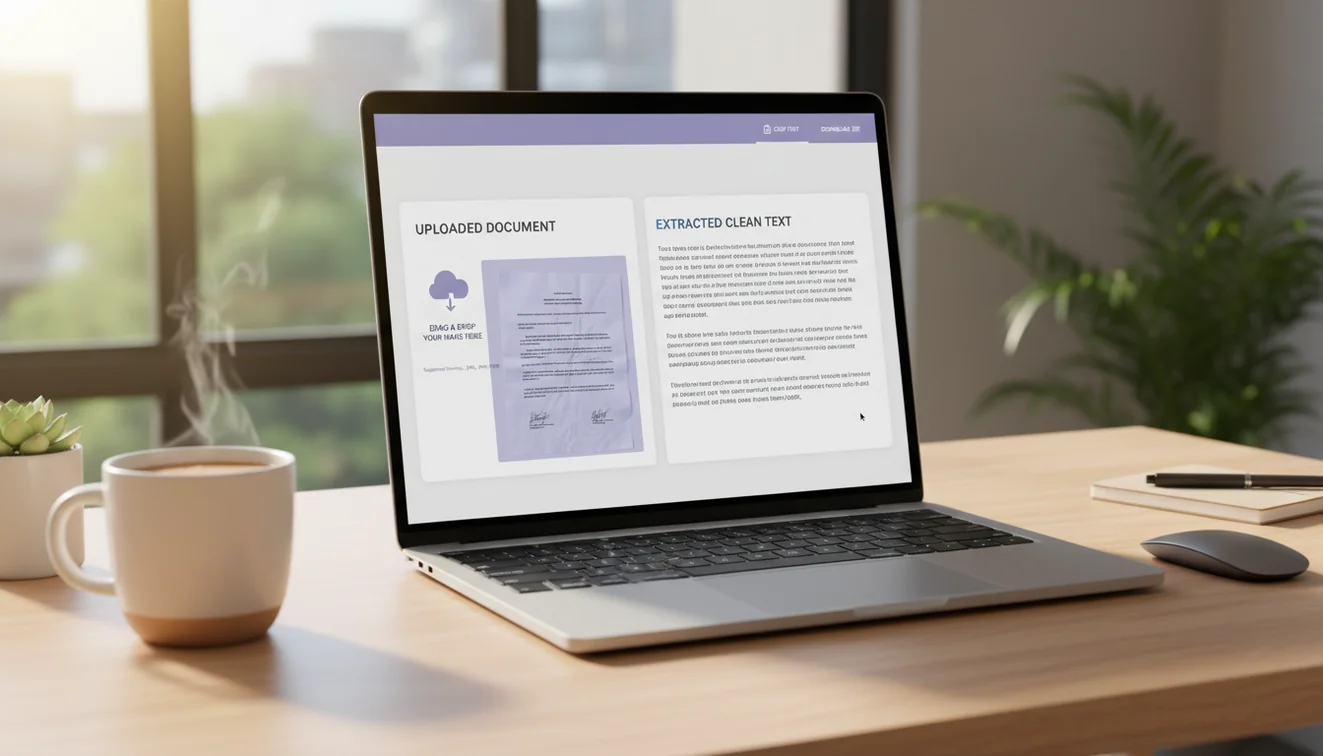
- Upload your image using the file input above. Click the upload area and select an image from your device. Supported formats include JPG, PNG, GIF, WebP, and BMP. For the clearest results, use an image where the text is sharp, well-lit, and unobstructed.
- Add an optional description in the text box. If you want the tool to focus on a specific part of the image or extract text in a particular format, describe what you need. For example, you could type "extract the table data" or "read the handwritten notes." Leaving this blank works fine for general text extraction.
- Click "Extract Text" to begin processing. The tool uploads your image and runs OCR analysis to identify all readable text. Processing time depends on image size and complexity, but most images are processed within a few seconds.
- Review the extracted text that appears in the output area. Check for any errors, especially with numbers, special characters, or words that may have been misread. Common OCR errors include confusing "l" with "1", "O" with "0", and "rn" with "m".
- Copy the text using the copy button and paste it into your target application. If you need to clean up the formatting, you can paste the text into the AI rewriter or grammar checker for quick formatting and error correction.
Supported Image Types and Quality Tips
The quality of your input image directly determines the accuracy of the extracted text. This is not a limitation unique to this tool-it applies to all OCR technology. Here is what makes the difference between clean extraction and garbled output.
Screenshots produce the most reliable results. Digital text rendered on screen has clean edges, consistent spacing, and high contrast. A screenshot of a web page, an email, a chat conversation, or a code editor will almost always convert with near-perfect accuracy. If you are working with digital content and have the option to screenshot instead of photograph, always choose the screenshot.
Scanned documents vary depending on scan quality. A 300 DPI scan of a printed document will convert cleanly. A 72 DPI scan or a fax-quality image will introduce errors, particularly with smaller text. If you are scanning specifically for OCR, set your scanner to at least 300 DPI and use grayscale or black-and-white mode rather than color, which reduces file size without affecting text recognition.
Photographs introduce the most variables. Lighting, angle, focus, and distance all affect recognition. A photograph taken straight-on in good lighting with the text filling most of the frame will work well. A photo taken at a steep angle, in dim lighting, or with the text occupying a small portion of the frame will struggle. For optimal photo-based OCR results, hold your camera parallel to the text surface, ensure even lighting without glare, and crop the image to include only the text area before uploading.
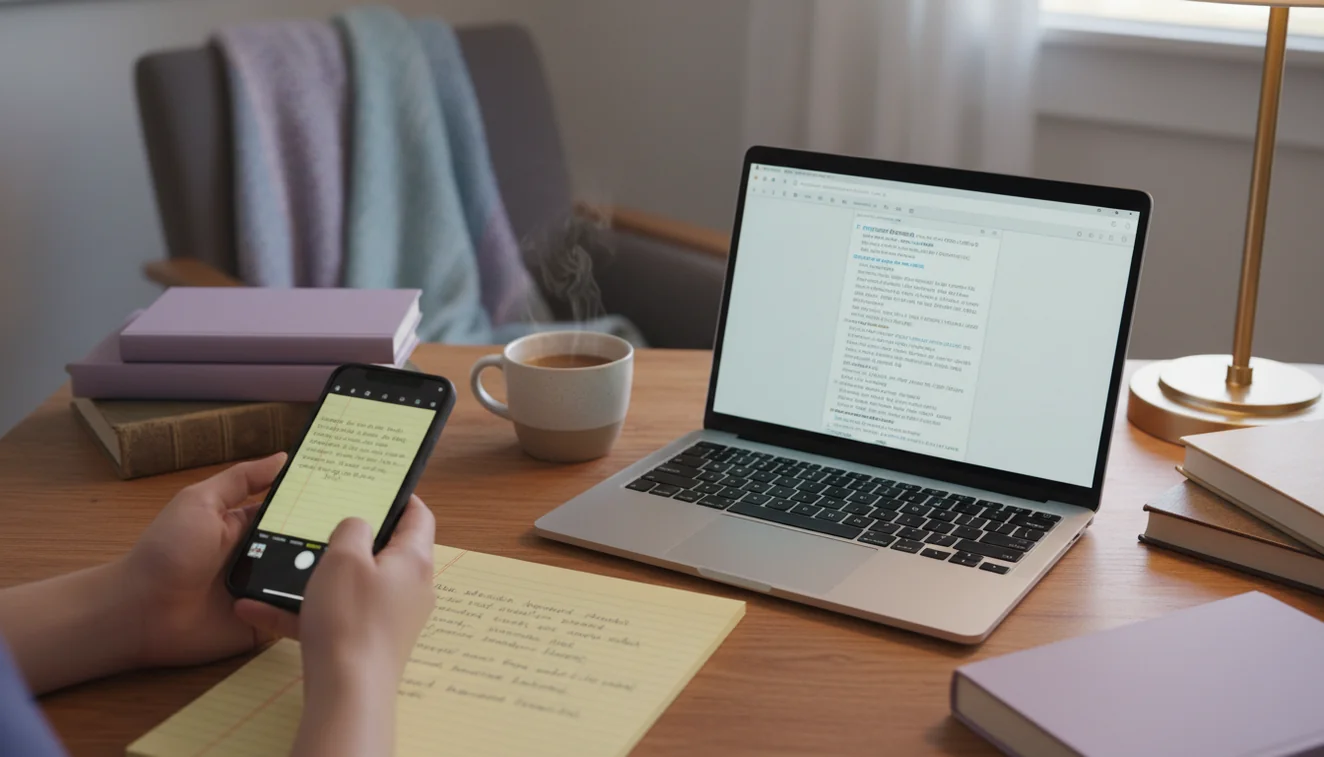
Handwritten text is the hardest category for OCR. Printed handwriting in block letters can be read with moderate accuracy. Connected cursive, personal shorthand, or hurried notes are frequently misinterpreted. If you need to digitize handwritten text regularly, consider using a stylus on a tablet instead, which captures strokes digitally and produces far more accurate results than photographing paper notes.
Common Uses for Image to Text
The practical applications extend well beyond what most people initially imagine. Extracting text from screenshots is the obvious use case, but there are several others worth knowing about.
Digitizing printed documents is one of the most valuable applications. Old contracts, printed manuals, business cards, and archived correspondence can all be converted to searchable digital text. This is particularly useful for small businesses that have years of paper records they want to make searchable without retyping everything. A stack of 200 business cards becomes a text file of contact information in minutes rather than hours.
Students and researchers use image-to-text tools to extract quotes from textbook photos, convert lecture slides into editable notes, and pull data from charts or tables in academic papers. If a PDF is locked or a journal article is only available as a scanned image, OCR is the fastest way to get the text into a format you can work with.
Developers extract text from application screenshots for bug reports, documentation, and testing. Rather than describing an error message in a bug ticket, they can paste the exact text. Technical documentation teams convert screenshots of legacy software interfaces into text for reference materials.
Translating text in images is another common workflow. If you encounter a sign, menu, or document in a foreign language, you can extract the text with this tool and then run it through the AI translator to get a translation. This two-step process handles cases where image-based translation apps struggle with complex layouts.
Limitations and Safety
OCR accuracy is fundamentally limited by image quality. No amount of software sophistication can reliably extract text from a blurry, low-contrast, or heavily distorted image. If the characters are not clearly visible to a human eye, they will not be clearly visible to the OCR engine either. Always use the highest quality source image available.
Complex page layouts present challenges. Text arranged in multiple columns, wrapped around images, or placed in overlapping layers may not extract in the correct reading order. Tables are particularly tricky-the tool extracts the text content but does not preserve the row-and-column structure. If you need to maintain table formatting, you will need to manually arrange the extracted text in a spreadsheet after copying.
The tool processes images through a server-side AI model. While Write.info does not store uploaded images after processing, users should be aware that images are transmitted over an encrypted connection for analysis. Do not upload images containing sensitive personal information, financial data, or confidential documents unless you are comfortable with the data transmission involved. For highly sensitive documents, local OCR software that processes images entirely on your device may be more appropriate.
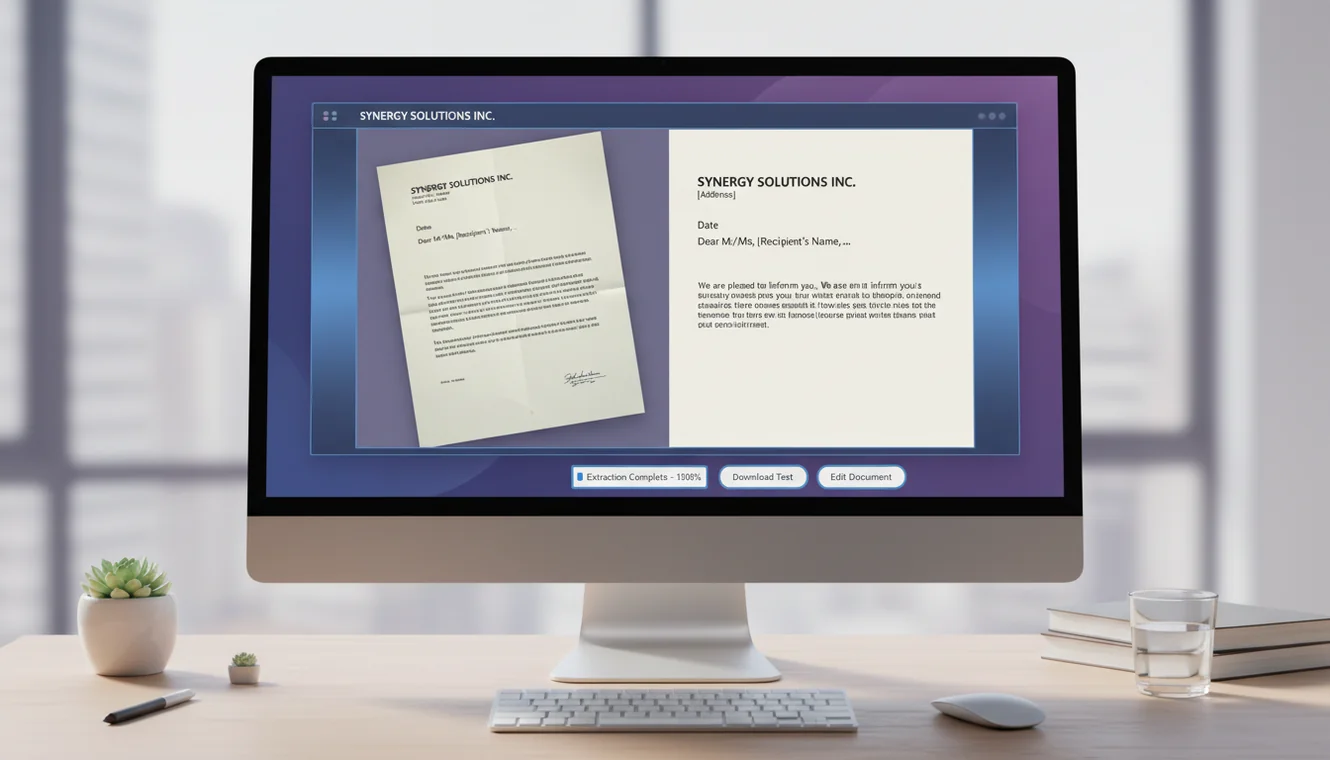
Extracted text should always be proofread before use in any important context. OCR errors are subtle-a misread digit in a phone number, a letter substitution in a name, or a dropped word in a sentence can change meaning without being immediately obvious. Treat OCR output as a draft that requires human verification, not as a guaranteed accurate transcription.
For more tools to work with extracted text, explore the full set of Write.info AI tools available on the homepage.
Turn extracted text into better writing
After converting an image to text, use Write.info to clean it up, rewrite it, summarize it, or continue drafting on your phone. Human review is still recommended for accuracy and responsible use.
Get Write.info AppImage to Text App
The Image to Text tool is available as part of the AI Writer app for iPhone and iPad. The app includes all writing, detection, and humanization tools in a single download with no account required. An Android version is currently in development.
The iOS app supports offline access to saved content and provides the same AI writing capabilities available on Write.info. Users receive 10 free generations per day on the website, while the app offers extended access through optional subscription plans.
Download on App Store